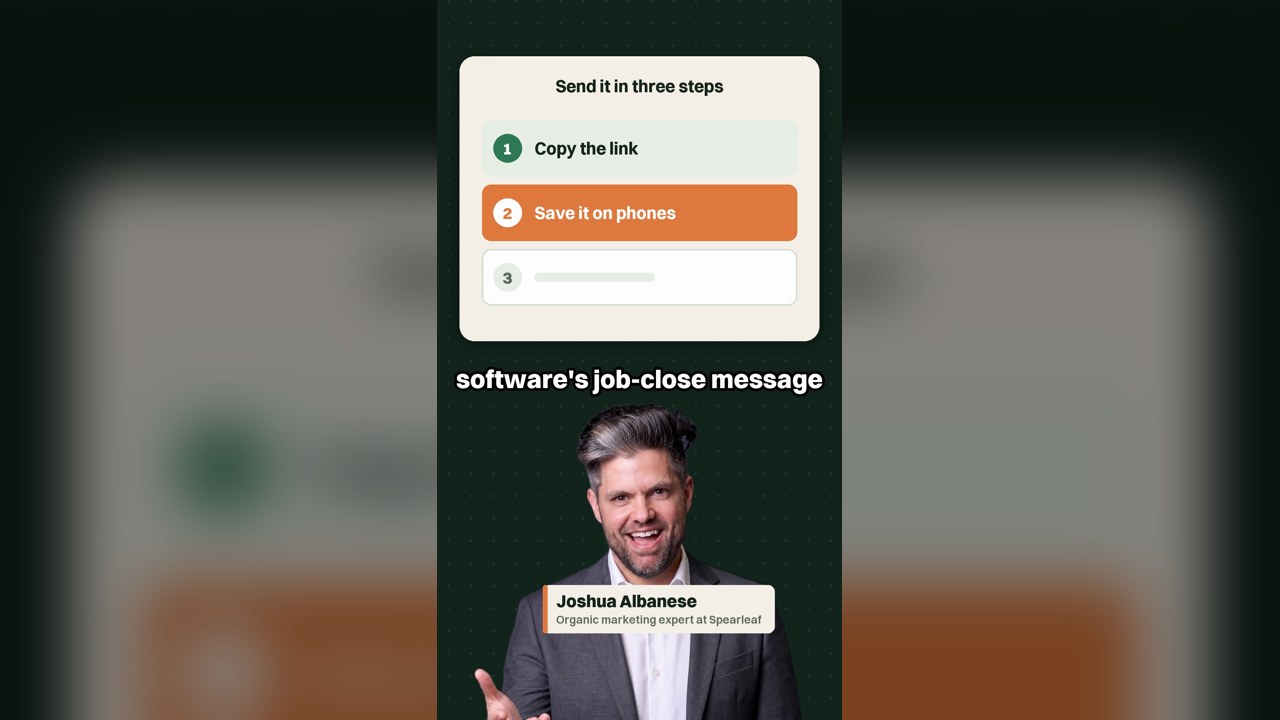
Your Google review link is on the "Get more reviews" screen of your Google Business Profile, ready to copy. For HVAC, plumbing and other home service companies, the bigger win is a tech texting that link before the truck leaves. In a short video, Joshua Albanese shows an HVAC owner when techs should send the link.
Where do I find my Google review link?
Your Google review link sits in your Business Profile, where "Get more reviews" gives you a link and a QR code. Google's help page on review links lists the steps and says the QR code only generates in a computer browser. Use one link everywhere, and share it with the office and every tech the same day.
The faster route needs no login. Spearleaf's free review link generator finds your listing by name and returns the link, a QR code to download, and a print-ready counter card. It costs nothing and needs no signup.
Why a Google review link matters for a home service business
A review link turns a good service call into proof the next homeowner can read. Northwestern's Spiegel Research Center found displaying reviews lifted conversion 380% for a higher-priced product, versus 190% for a lower-priced one. Make asking easy, especially after big-ticket jobs such as a new system or a repipe.
A review can name the person who helped. "Good employees are hard to find and he did a fantastic job," wrote a 5-star Trustpilot reviewer in my own industry. The same reviewer said the employee "was so attentive and knew exactly what I needed for my business" and named him.
"Our rep completely stopped responding, we've called, texted, and emailed with no reply," read a 1-star review of another agency. Customers write about the person they dealt with, and on a service call that person is your tech.
Getting the link from your Google Business Profile
Do this once on a computer, signed in to the Google account that manages the profile.
- Open your Google Business Profile from Google Search or Google Maps.
- Select "Read Reviews," then "Get more reviews."
- Select Copy to grab the review link.
- Right-click the QR code and choose "Save image as" to download it for invoices and cards.
- Text the link to your own phone, open it, and confirm your business name appears.
- Send the link to the office and every tech the same day.
When HVAC and plumbing techs should send the review link
Techs should send the review link at the end of the visit, before the truck leaves the driveway. Google's review link page points to the same moment, suggesting receipts and the end of a chat interaction. Build the text into job close, while the AC or heat is running again.
A next-day automated text from your field service software still helps, but it lands after the relief has faded. Keep it as the backup reminder, with the tech's own text as the first ask.
Sending after every job also builds review depth, which counts in AI answers. In my 216-market study, businesses ChatGPT kept showing had a median of 226 reviews, versus 164 for those it dropped.
Steps for a tech to ask and text the review link
- Finish the job and confirm the system works with the customer there to see it.
- Ask in person, in plain words, something like: a review on Google really helps a small shop, and I'll text you the link.
- Text the link from a saved message with the tech's name: "Hi, it's Dave from [Company]. Thanks for having us today. Here's the link to review us on Google: [link]."
- Leave it with the customer. The tech does not wait while they write, because Google's policy rules out pressure to review on the spot.
- Log the job as asked, so the office can see who sent the link.
Google review rules for techs in the field
Google's Maps content policy spells out what a business may do when it asks for reviews. The FTC's guide for marketers adds: "Don't ask for reviews only from customers you think will leave positive ones."
-
Send the link to every customer. Google bars businesses that "selectively solicit positive reviews from customers."
-
Set no review quotas. Google lists "Merchants requesting that staff solicit a certain number of reviews."
-
Let customers write what they want. Requests for content "that identifies a staff member" are on Google's list.
-
Call the unhappy customer first, fix what you can, then send the same link.
-
Offer nothing for a review. Google counts payment, discounts and free services as incentives, so a tune-up discount is out.
-
Keep staff and family off your profile, since Google treats employment as a conflict of interest.
Three other ways to make a link for Google reviews
Spearleaf's free generator
Search your business name, pick your listing, and get the link, a QR code and a counter card. Make your review link here when nobody can find the profile login.
Google's Place ID
Every listing has a Place ID, and the long review link is search.google.com/local/writereview?placeid= followed by that ID. Google's Place ID docs say IDs may change over time.
A Google Maps share link
The "Share" button in Google Maps copies a link to your listing. The customer still has to find the review button, so use it only as a fallback.
Places to put the review link and QR code
-
A saved text on every tech's phone, ready to send at job close.
-
The job-close text or email in your field service software, as the backup reminder.
-
The invoice and receipt, which Google names as a good spot for the link.
-
A leave-behind card or door hanger with the QR code, for customers who prefer to scan.
-
The office team's email signature, for customers who call or email in.
Testing your Google review link before the team uses it
- Open the link in a private browser window and confirm it opens your business, not a similar name nearby.
- Check the city and street if you run more than one location, since each location has its own link.
- Expect a sign-in screen. Google's review tips say customers must be signed in to a Google Account, which a non-Gmail address can create.
- Retest the link each quarter, since Place IDs can change.
- If it changes, replace it everywhere at once: saved texts, software templates and printed cards.
What service customers see after they open the review link
For certain service businesses, Google asks reviewers to rate aspects of the job and pick the tasks you did. Google's page on service business reviews says those tasks come from your service list or website. Add every job type to your Business Profile service list.
That detail helps the next homeowner, who can filter your reviews by an aspect such as price. Keeping the service list complete is part of Google Business Profile optimization.
Tracking Google reviews by tech without a quota
One shared review link cannot tell you which tech earned a review. I recommend tracking what each tech controls: review requests sent per completed job, pulled from the job-close text or your field service software log.
Count the reviews published on Google for the business as a whole each month. Matching a review to a tech by name and date is possible but unreliable, so count unmatched reviews at the shop level.
Keep both numbers as coaching tools. Google's policy lists staff review quotas as not allowed, so skip targets, contests and bonuses tied to reviews. For the star average itself, read my guide on how to improve your Google rating.
Turn every service call into a Google review request
I run reputation management for service businesses: review generation, monitoring on Google, Yelp and Facebook, a reply to every review, and monthly reporting. The work starts where this article does, with one link sent to every customer.
Talk to Spearleaf about reputation management
- Read the guide: how to improve your Google rating without gaming it.
- Start here: six ways to get more calls from your Google Business Profile.
- Measure it: local SEO metrics that matter and how to track them.